
Learn how to configure email notifications in Members Only so your members stay informed about important billing and subscription events.
Overview
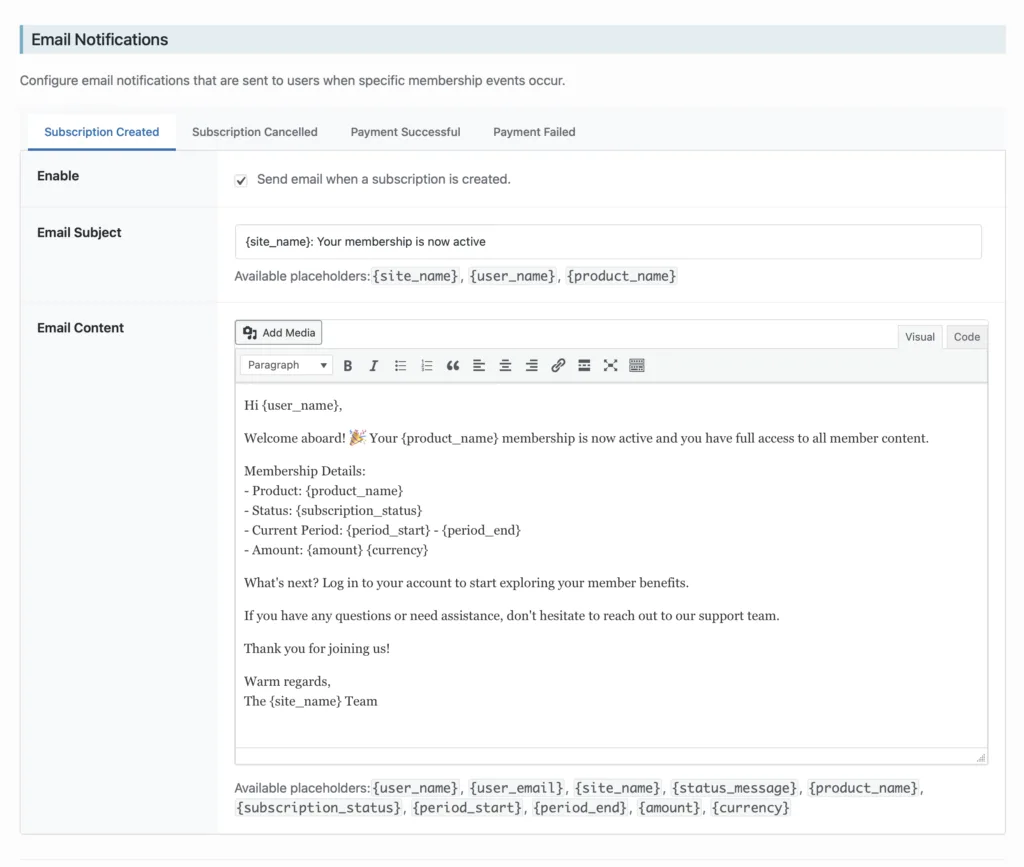
Members Only can send automatic emails to members when key events happen, like a new subscription starting, a renewal payment succeeding, or a payment failing.
These emails are fully customizable, and you can enable only the ones you want.
Getting Started
Go to your WordPress admin and navigate to:
Settings → Members Only → Email Notifications
You’ll see a set of notification types in a tabbed interface.
Notification Types
Members Only supports four notification types:
Subscription Created
Use this as a welcome email. This is sent when a member successfully signs up.
Common uses:
- Welcome message
- Set expectations (“Here’s what you get / where to start”)
- Link to the Account page or getting started page
Subscription Cancelled
This confirms the cancellation and helps reduce “why did I lose access?” support tickets.
Tip: Since cancellations happen at the end of the billing period instead of immediately, it’s helpful to say that clearly in this email.
Payment Successful
Useful as a renewal receipt and confirmation that everything is in good standing.
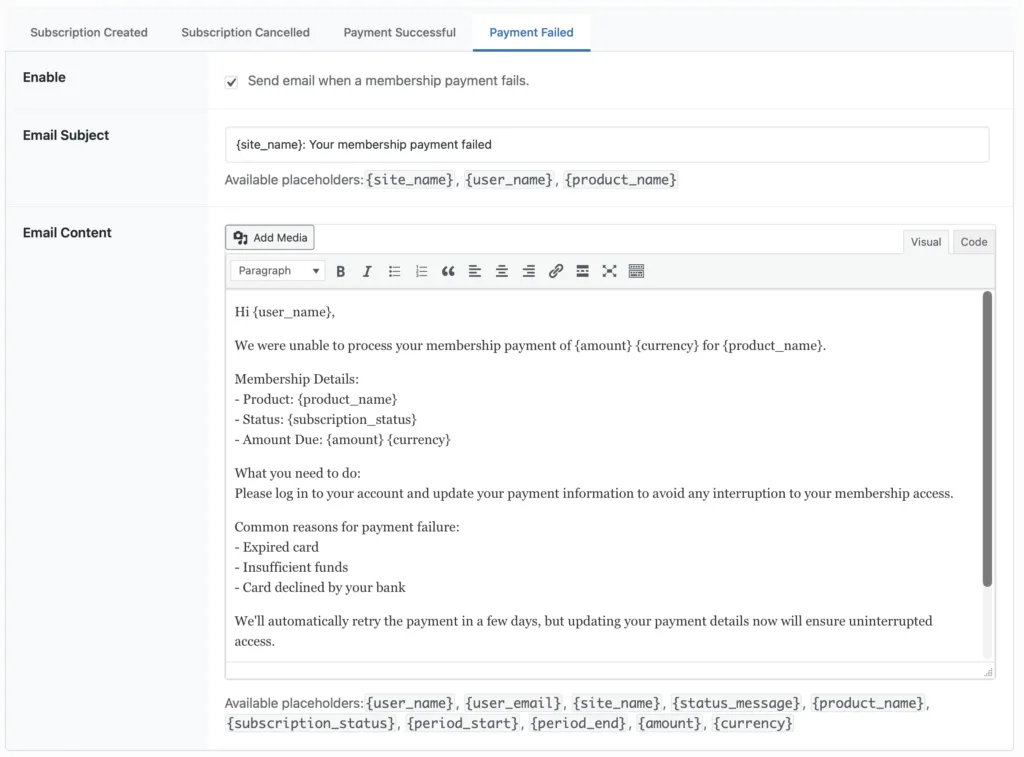
Payment Failed
This one reduces churn. If a payment fails, members should know quickly so they can update their payment method.
Enabling a Notification
For each notification type:
- Click the notification tab (e.g. Payment Failed)
- Check Enable
- Customize the Subject and Email Content
- Save your settings
Placeholder Tags
Email subjects and content support placeholder tags so you can include real member and purchase details.
Examples include:
{user_name}{product_name}{amount}
(You’ll see the available tags listed in the notification editor.)
Tips for Reliable Delivery
If your site’s emails aren’t arriving reliably:
- Ask members to check spam/junk folders
- Make sure your WordPress admin email is correct (Settings → General)
- Consider using an SMTP plugin or transactional email provider for better deliverability