
Learn how to grant membership access manually using Access Passes. This is useful when you want to provide access without requiring a Stripe checkout.
Overview
An Access Pass lets you manually grant membership access to a WordPress user for a specific period of time.
When a user has an active Access Pass, they are treated the same as a paying member for access control purposes.
Common Use Cases
Access Passes are handy for things like:
- Offline payments
- Invoice-based billing
- Complimentary access
- Team member access
- Migrating members from a previous system
How to Grant an Access Pass
Access Passes are managed directly on the user profile screen.
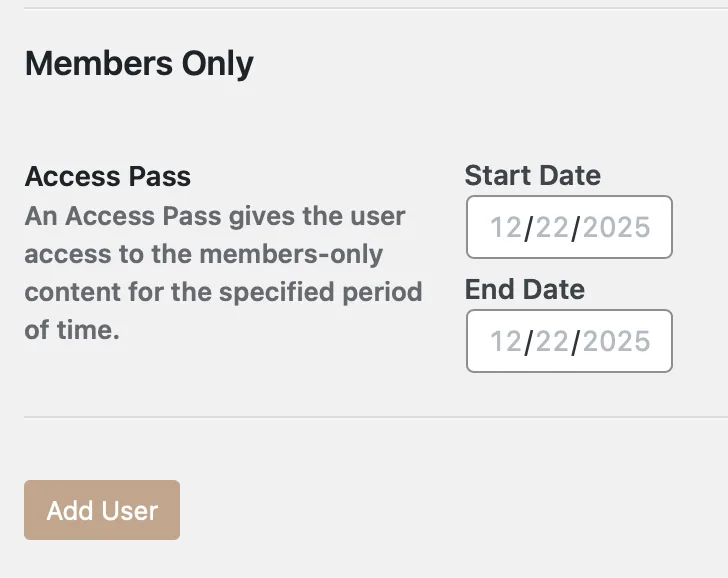
Granting an Access Pass to a New User
- Go to Users → Add New
- Create the user as you normally would
- Find the Members Only Access Pass section
- Set the Start Date and End Date
- Save the user
Granting an Access Pass to an Existing User
- Go to Users
- Click a user to edit their profile
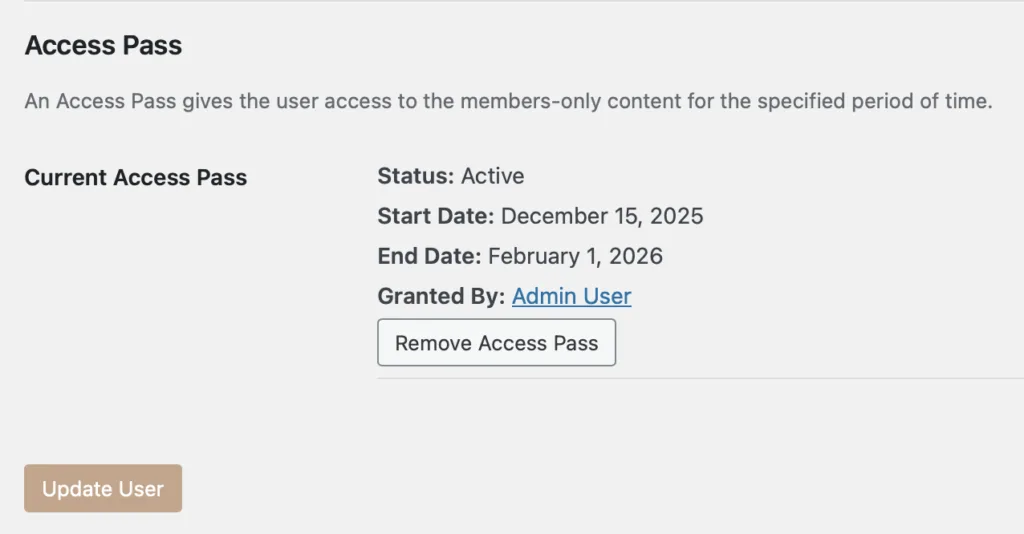
- Find the Members Only Access Pass section
- Set the Start Date and End Date
- Click Update User
Removing an Access Pass
If you need to revoke access early (or clean up a pass), edit the user and use the Remove Access Pass option.

What Happens When It Expires?
Once the End Date passes:
- The user’s Access Pass expires automatically
- They no longer have access to restricted content
- They can purchase a membership using your Stripe Checkout buttons if they want continued access
- You can remove the expired Access Pass and grant them another if you want